



Not all voice recognition tools are created equal, and the gap between consumer-grade and professional-grade software becomes obvious the moment your workflow gets complex. AI voice recognition software for Windows needs to do more than convert sound to text. It needs to fit inside a real working environment without demanding that you reshape your habits around its limitations.
Final Word was built from that starting point. The design prioritizes the active workflow, visible recognition, and control over the listening process, rather than simply maximizing raw transcription speed.
Who Needs Dedicated Voice Recognition Software on Windows?
The clearest answer is anyone whose writing volume outpaces their comfortable typing speed. That includes lawyers, consultants, healthcare providers, executives, content professionals, and anyone handling significant documentation or correspondence daily.
But the more nuanced answer is anyone who moves between multiple applications during a single task. A chiropractor who dictates patient observations while reviewing case history in another window. An executive who composes email responses while referencing a document on a second monitor. A writer who dictates prose into a word processor while keeping research notes open.
Final Word’s active-cursor insertion model handles all of these because it follows your focus rather than demanding you bring your focus to it.
How Does the High-Visibility Transcription Feature Work?
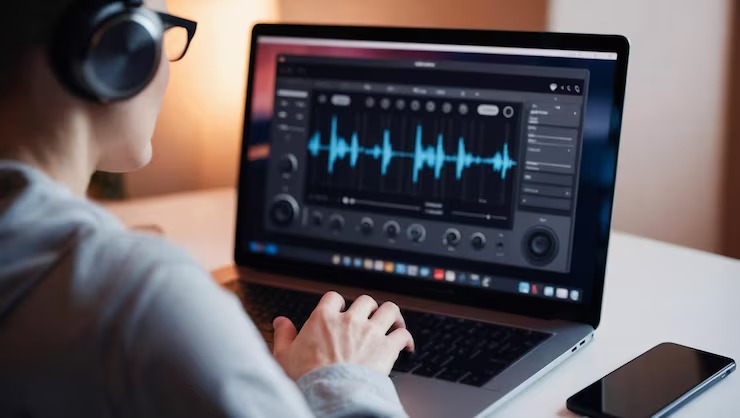
After Final Word processes a spoken phrase, the recognized text appears in a high-visibility transcription panel before and as it’s inserted. This lets you review the most recently recognized phrase before moving forward.
This review step sounds minor but prevents a significant category of error. In a traditional voice dictation flow, you might speak several sentences before glancing at the result. By then, a misrecognized word sits several paragraphs back and requires scrolling to find. Final Word’s phrase-by-phrase display keeps errors surfaced immediately, where they’re easiest to catch and correct.
Can You Use Final Word With a Standard Microphone?
The software works with any microphone Windows recognizes. The four-stage audio monitoring tells you exactly what it’s receiving, from the system level down to the detected voice activity level. This visibility lets you evaluate whether your microphone setup is sufficient without running tests separately.
Professional users who dictate heavily often choose a dedicated headset or desktop microphone for better signal quality and reduced ambient noise pickup. The AI voice recognition software for Windows from Final Word supports this by giving you real-time visibility into what each input stage is delivering, so you can see the difference a better microphone makes without guessing.
What Is the Integrated Processing Log?
This feature is specifically valuable in professional environments where technical staff support the people doing the dictation. The integrated processing log gives support staff a clear view of the stages between microphone input and returned text.
When a recognition issue occurs, the log distinguishes whether the problem is at the audio input stage, the detection stage, the recognition stage, or the text insertion stage. This diagnostic clarity shortens troubleshooting significantly. Instead of “the voice recognition isn’t working,” you get a specific point of failure that support staff can address.
How Does Active-Window Text Insertion Differ From Clipboard-Based Approaches?
Clipboard-based voice tools recognize your speech and copy the result to your clipboard. You then paste it into whatever you’re working on. This two-step process seems minor until you’ve done it hundreds of times in a day and realized how disruptive the context switch is.
Active-window text insertion in Final Word skips that step entirely. Recognized text appears at your cursor in the application that has focus at the moment recognition completes. You don’t interact with the clipboard, you don’t switch focus, and you don’t manage a separate transcription application alongside your main work.
This model also handles multiple application contexts naturally. Your cursor might be in a Word document when you start dictating and in an email reply window ten minutes later. Final Word inserts text in each location without requiring any configuration change between them.
What Is CatchPhrase and How Does It Complement Final Word?
CatchPhrase is a separate Software Motif product designed for reusable phrases, boilerplates, references, and drag-and-drop narrative content. In combination with Final Word, it creates a workflow where commonly used language doesn’t need to be dictated repeatedly.
For a chiropractic practice, this might mean standard clinical language, treatment descriptions, or patient communication templates stored in CatchPhrase while patient-specific spoken detail flows through Final Word into the active record in MyEMR.
Conclusion
Professional AI voice recognition software for Windows voice recognition software visibility, control, and active workflow integration. Final Word’s combination of four-stage audio monitoring, high-visibility transcription, adjustable detection thresholds, and direct cursor insertion makes it a tool built for real professional environments, not just controlled demos.
FAQ
Q: What microphone types work with Final Word? A: Final Word works with any microphone that Windows recognizes. The four-stage audio monitor helps you evaluate signal quality in real time.
Q: What does the processing log show? A: The integrated processing log gives technical staff visibility into the input, detection, recognition, and text insertion stages for troubleshooting purposes.
Q: How does Final Word handle moving between different applications? A: Final Word uses active-window text insertion, so recognized text goes to whatever application has cursor focus at the moment recognition completes, with no manual switching required.
